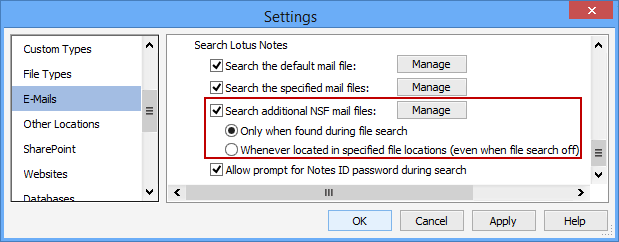
The Search Additional NSF Mail Files setting will enable Spirion to search within any Lotus Notes mail (*.nsf) files located in the path(s) specified by the File search.
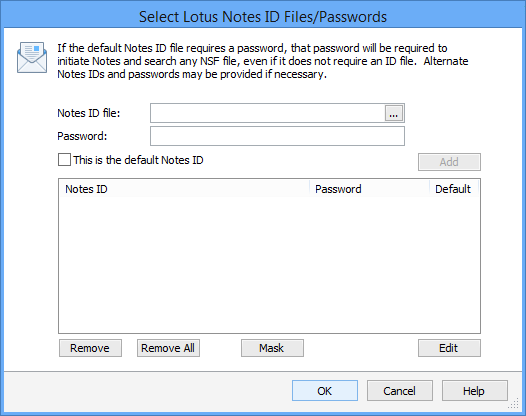
To specify the Notes ID files and passwords needed to open any mail files that are encountered, click the Manage button. If Notes ID files and passwords are not provided, it is necessary to ensure that the Allow prompt for Notes ID password during search is enabled or the discovered mail files will not be searched.
You can have Spirion search for NSF mail files in two ways:
Note: This setting will only be displayed when the Lotus Notes search module has been installed.
Note: Lotus Notes must be installed on the system performing the search.
After clicking Manage, the Select Lotus Notes ID Files/Passwords dialog will appear. This dialog allows you to provide the path to one or more Notes ID files and their associated password(s). It is necessary to specify the full path to the id files and passwords in order to search any mail (*.nsf) file that is encrypted. If there are one or more nsf files that are not encrypted, it is necessary to have the Notes ID file and password for the default mail file.
To view or modify this setting, click the Configuration ribbon, then the Settings button and then select the E-Mails page. For additional settings please refer to View and Manage E-Mail Applications to Search or Settings to Customize Your Experience.